How to Keep Your Child Safe Online: Block Betting Ads, Adult Sites and Risky Apps for Free
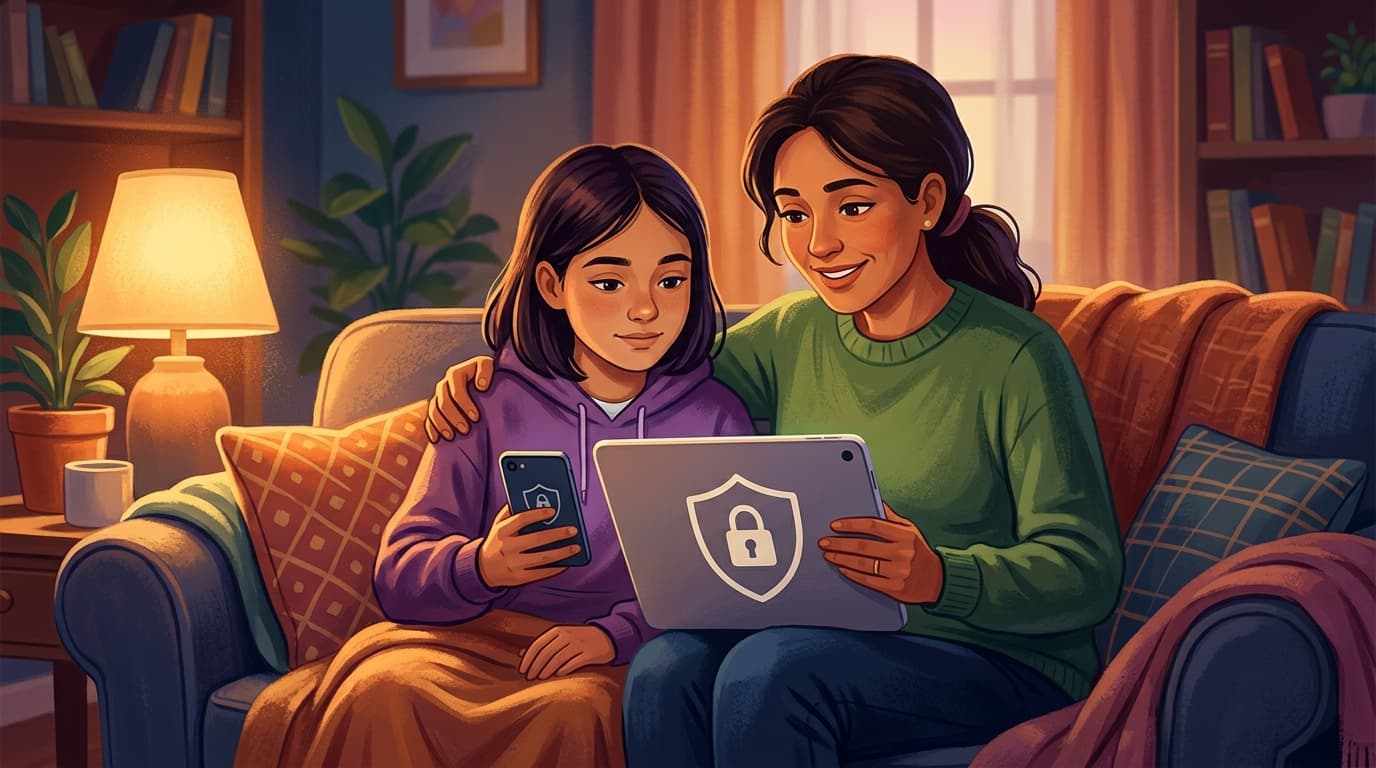
Free built-in settings to block gambling ads, adult sites and risky apps on Android, iPhone, YouTube and Google, and what to do if your child is targeted.
Quick answer: You can block most betting ads, adult sites and risky apps on your child's devices for free, using controls already built into Android, iPhone, YouTube and Google Search. Set up a supervised account for your child, switch on content filters and app approvals, and agree with them what to do if someone online asks for photos or money. If your child is already being threatened or blackmailed, do not pay, keep a record of the messages and report it straight away.
What to do in 3 steps
- Give your child a supervised account. On Android, supervise your child's Google Account with Google Family Link. On iPhone or iPad, add your child to Family Sharing and manage their Screen Time from your own device. Both let you approve new apps and set content limits.
- Switch on the filters. Keep SafeSearch on, use YouTube Kids or a supervised YouTube account, and limit app and game downloads by age rating, so gambling and adult apps cannot be installed without your approval.
- Agree a "tell me first" rule. Tell your child they will not be in trouble if they come to you when someone online asks for photos, money, gift cards or game credits, or asks to move the chat to another app.
Why betting and gambling ads still reach children
The big ad platforms say gambling ads must not target minors. Google requires certified, licensed advertisers and applies extra ad safeguards to accounts of under-18s. Meta says gambling ads may not target people under 18, and does not allow them at all in some markets, including India, Singapore, Indonesia, Pakistan and the Philippines. Children still see gambling promotions on accounts registered with an adult's age, on shared family devices, through sports streams and influencer posts, and through illegal betting apps that ignore the rules. A supervised account helps because the platform knows the user is a child.
Android phones and tablets: Google Family Link
- Set up: install Google Family Link on your phone and follow the steps to supervise your child's Google Account. You can create a new account for a younger child or supervise an existing one (your child has to agree, and you must live in the same country). Family Link does not control iPhones or iPads.
- App approvals: in Family Link, open Controls › Google Play › Purchases & download approvals and require your approval for all content. You can also filter apps and games by age rating. Apps installed before you set the filter stay on the device, so check what is already there.
- Search and browsing: SafeSearch is turned on and locked by default for supervised accounts. Under Controls › Google Chrome and Web you can choose "Try to block explicit sites" or "Only allow approved sites".
- Screen time: set a daily limit, schedule Downtime for night-time, and lock the device remotely when needed.
iPhone and iPad: Screen Time and Family Sharing
- Set up: add your child to Family Sharing, then on your own iPhone open Settings › Family › your child's name › Screen Time. Apple recommends managing your child's settings from your device.
- Ask to Buy: your child has to ask you before downloading or buying apps. It is on by default for children; check it under Settings › Family › your child's name.
- Restrictions: limit adult websites in Safari ("Limit Adult Websites" is on by default for under-18s) and restrict apps by age rating.
YouTube and Google Search
- Young children: use the YouTube Kids app, which has Preschool (4 and under), Younger (5–8) and Older (9–12) settings.
- Older children: a supervised YouTube account lets you choose Older kids (9+), Teens (13+) or Older teens (16+).
- Google Search: SafeSearch "Filter" blocks explicit results. It is the default for accounts believed to belong to under-18s.
- Ads: report a gambling ad your child sees. On Google services, tap the three dots on the ad and choose Report ad; on other websites, use "Why this ad?" and then Report ad.
Home Wi-Fi: filter every device at once
Many home routers and internet providers offer free parental controls that filter websites for every device on your Wi-Fi, including games consoles and smart TVs. Check your router's settings or your provider's app, and see which categories (such as adult or gambling sites) they actually cover. A free family-filtering DNS service such as Cloudflare's 1.1.1.1 for Families (addresses 1.1.1.3 and 1.0.0.3) blocks malware and adult content across your network. Network filters stop working on mobile data or a friend's Wi-Fi, so the account-level controls above matter most.
If your child is being targeted
Warning signs include sudden secrecy about a phone, new online "friends" who are much older, requests to move a chat to another app, gifts or game credits from strangers, and panic about a message.
- Do not pay or send anything. In sextortion cases, paying rarely stops the blackmail.
- Keep a record, but not of images. Note or screenshot the account name, usernames and the messages before you block. Never screenshot, save or forward a nude or sexual image of a child, even as evidence: in many countries that is itself illegal.
- Get images taken down. NCMEC's free Take It Down service helps remove nude or sexual images taken before age 18 from platforms that have signed up, without the image ever leaving your device.
- Report it. Report the account to the platform and to the police.
- United States: NCMEC's CyberTipline or 1-800-843-5678.
- United Kingdom: your local police on 101, or 999 in an emergency. Children can report for themselves through the CEOP Safety Centre.
- Australia: sexual extortion of an under-18 to the ACCCE; see also eSafety's guidance on dealing with sextortion.
- India: cybercrime.gov.in, under "Women/Children Related Crime" (you can report anonymously).
- Elsewhere: find your country's police cybercrime unit in our cyber agencies directory.
- Support your child. Tell them clearly that it is not their fault. If they are distressed or talk about harming themselves, contact a local child helpline or emergency services straight away.
More detail: financial sextortion and how parents can stop it, and how to remove leaked intimate images.
Talk about it, not just block it
No filter catches everything, and children often find ways around a locked-down phone. Explain why betting apps and "free game credit" offers are risky, make sure your child knows they can come to you without being punished, and review the settings together as they get older.
If your child has been targeted, you are not alone. See our country-by-country cybercrime help hub for step-by-step reporting guides.