Back to News
How to Fix the Grok ‘User Exceeds Storage Allowance’ Error
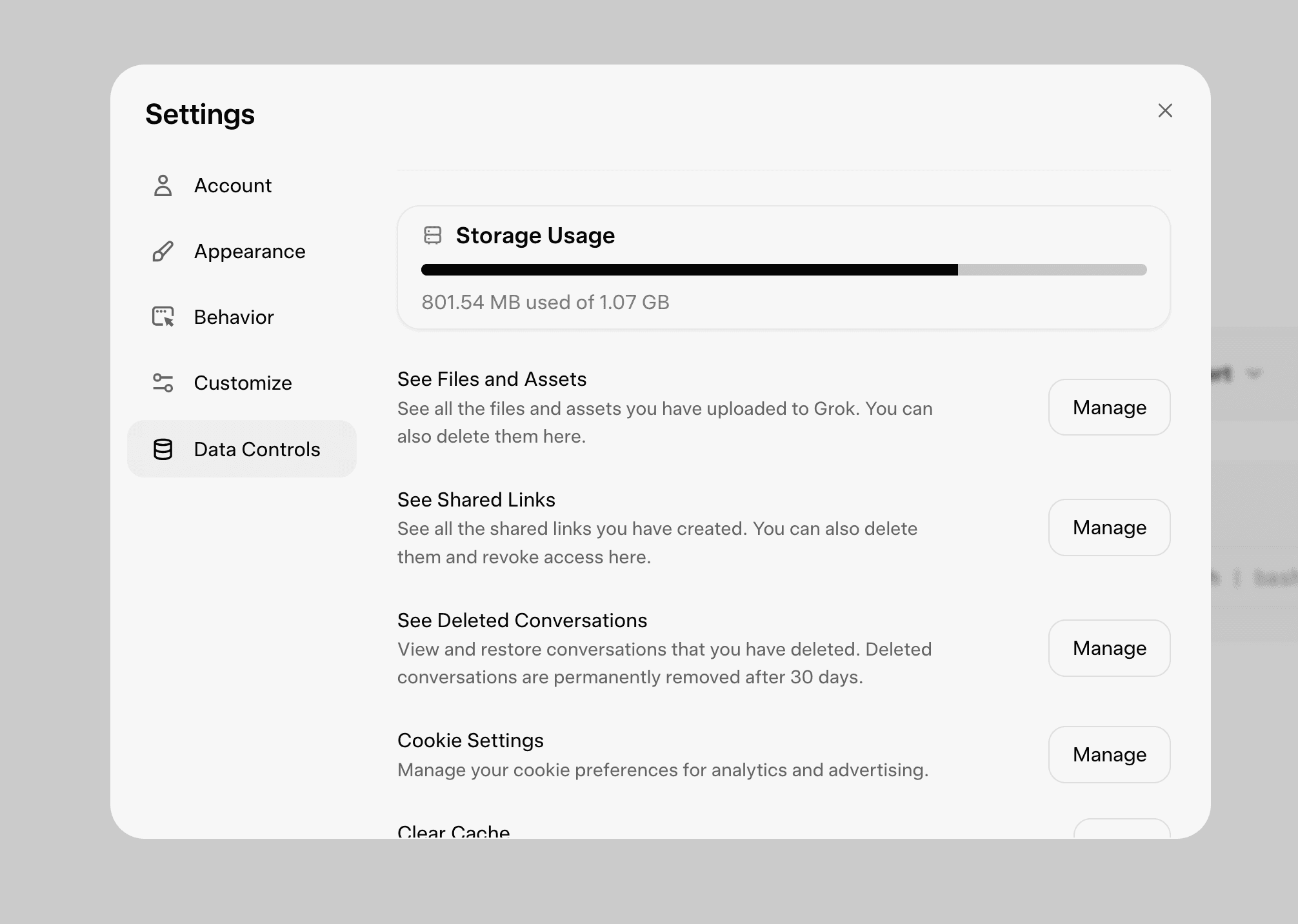
Grok shows a 'storage exhausted' error when your account's ~1 GB of free space fills up with uploaded files. Here's how to check your usage and clear it.
Grok and xAI users often run into a common issue after heavy use across products like Grok Chat and Grok Imagine. When you try to upload a file — in a project or in chat — you may see an error like this:
{"code":8, "message":"User exceeds their storage allowance [WKE=file:storage-exhausted]", "details":[]}
What causes it
Grok provides roughly 1.07 GB of free storage per account. The error appears once that space fills up — usually from uploaded files accumulating over time. You can check your current usage in a couple of steps:
- Click your User Account (bottom-left) → Data controls
- Scroll down to Storage Usage to see how much space is occupied
How to fix it
- Click the Manage tab, or go directly to grok.com/files.
- Sort files by size (high to low) to find the largest ones.
- Delete the files you no longer need.
Once you have cleared enough space, Grok will start functioning normally again.